 RichTextBox
Resize images in a rich text editor in ASP.NET Core
A photo straight from a camera is far wider than your page. Users need to make it smaller without opening another program, and you need large files not to fill your server. These are two separate jobs.
Resizing in the editor
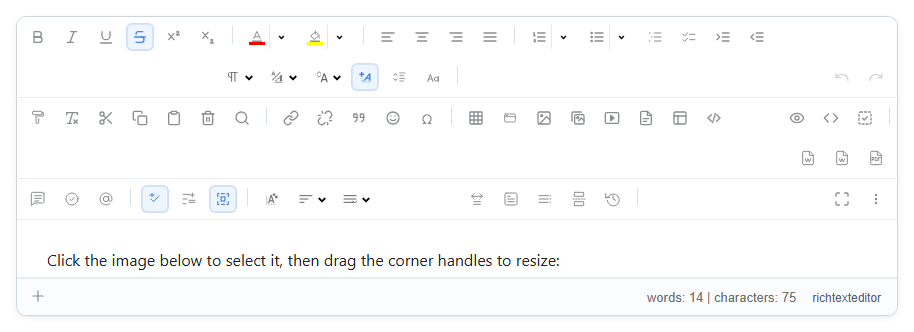
Select a picture and drag its corner handles. This changes the size it is shown at, recorded in the HTML, and it needs no configuration. Here is an editor that starts with a picture to try:
<richtextbox name="Body"
             toolbar="full"
             height="400px"
             html="<p><img src='/images/Intel.svg' style='width:200px;height:auto' /></p>"></richtextbox>
This does not shrink the file
Dragging the handles changes the display size only. A 6000-pixel photo shown at 400 pixels still downloads in full, so your readers pay for it. Keep this in mind when you set limits.
Limits on the server
RichTextBox limits what it accepts, and it refuses rather than converts:
| Option | Default | Effect |
|---|---|---|
MaxUploadBytes | 4 MB | Refuses a larger file |
MaxImagePixels | 100 million | Refuses an image with more pixels than this, read from its header before anything decodes it |
builder.Services.AddRichTextBox(options =>
{
    options.MaxImagePixels = 25_000_000;   // about 6000 x 4000
});
If you want files actually made smaller
The package does not resize uploaded files on the server. To do that, wrap the upload store and process the stream with an image library before you save it. SaveAsync gets the file after all the checks have passed, so your resizing code only ever sees a real image. Check that library's own license before you use it.
The editor also has a built-in image editor for cropping and rotating in the browser, which saves a new file through the same endpoint.