 RichTextBox
Add an image gallery to a rich text editor in ASP.NET Core
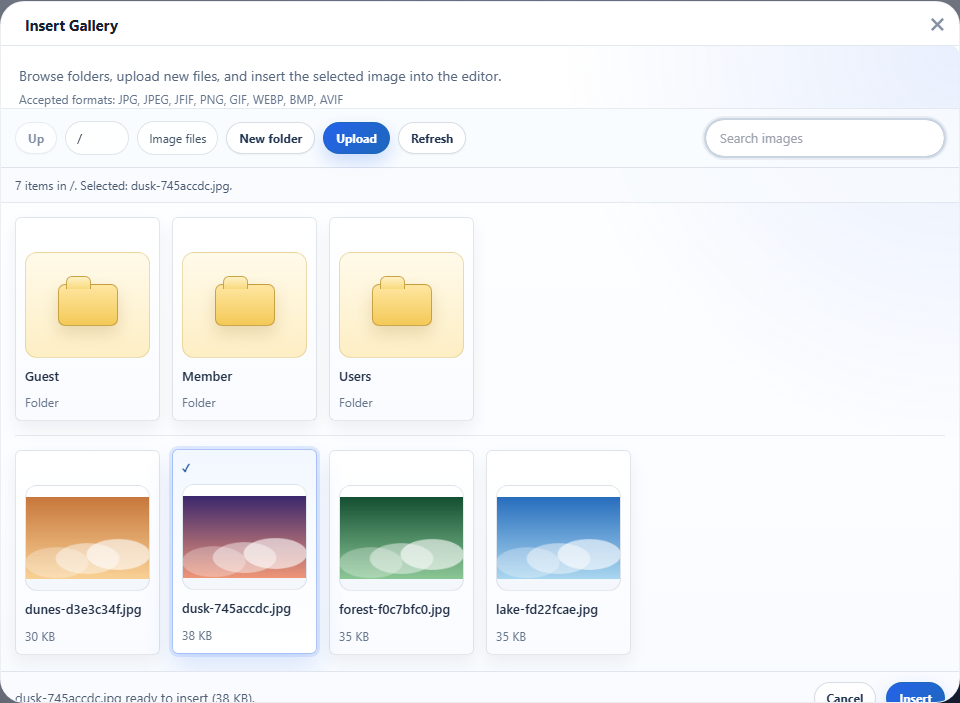
An upload button only adds new files. A gallery also lets people see what is already there, reuse a picture and keep things in folders. RichTextBox has one built in, and in ASP.NET Core it needs no extra page or controller.
The button
The gallery has its own toolbar button, insertgallery, on the full toolbar. On any toolbar, the Insert Image button also has an Image Gallery tab. For a smaller toolbar, name it yourself:
<richtextbox name="Body"
             toolbar="{bold,italic}|{insertgallery,insertimage}|{undo,redo}"
             height="400px"></richtextbox>
On the server, app.MapRichTextBoxUploads() already maps GET /richtextbox/gallery for the list and POST /richtextbox/gallery for new folders.
What users can do
- Open folders and go back up.
- Search the pictures in the folder by name.
- Upload into the folder that is open.
- Create a folder.
- Choose a picture and insert it into the text.
Where the list comes from
The gallery asks your registered upload store for the list. The default store reads the upload folder on disk. A store for other storage takes part by also implementing IRichTextBoxUploadBrowser:
public interface IRichTextBoxUploadBrowser
{
    Task<UploadFolderListing?> ListAsync(string folder, RichTextBoxOptions options, CancellationToken cancellationToken = default);
    Task<bool> CreateFolderAsync(string parentFolder, string name, RichTextBoxOptions options, CancellationToken cancellationToken = default);
}
Without it, uploads still work and the gallery answers 501 Not Implemented, naming the interface, so you can see what is missing.
Who sees what
Out of the box, everyone shares one set of folders, which suits a company site. Two things to decide before going live:
- Who may use it. Without a policy, anyone who can reach the site can browse and upload. Add your own authorization policy.
- Whether users share. For a forum or a multi-customer application, give each user their own folder.
Accepted formats
The server's own list decides what is stored, and by default it is JPEG, PNG, GIF and WebP. SVG is left out on purpose, because an SVG served from your own site can run scripts. Change the list through options.AllowedImageExtensions.